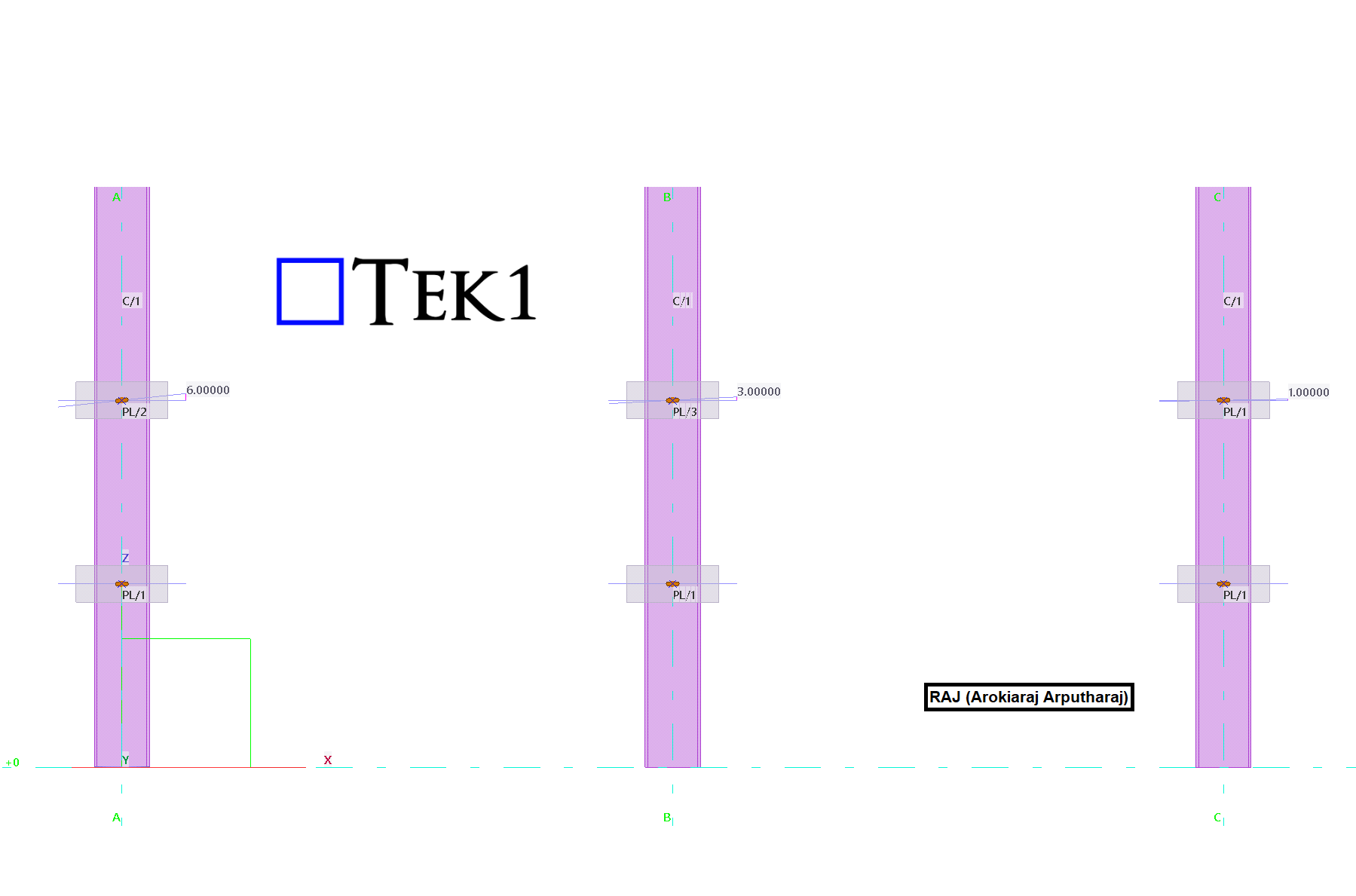
This article explains the Tekla Part Mark Issue with 1° Rotated Slotted Holes and provides a practical solution.
One common issue in Tekla Structures is assigning the same part mark to different-looking plates.
This occurs when two plates have identical dimensions, thickness, material, and slotted hole size.
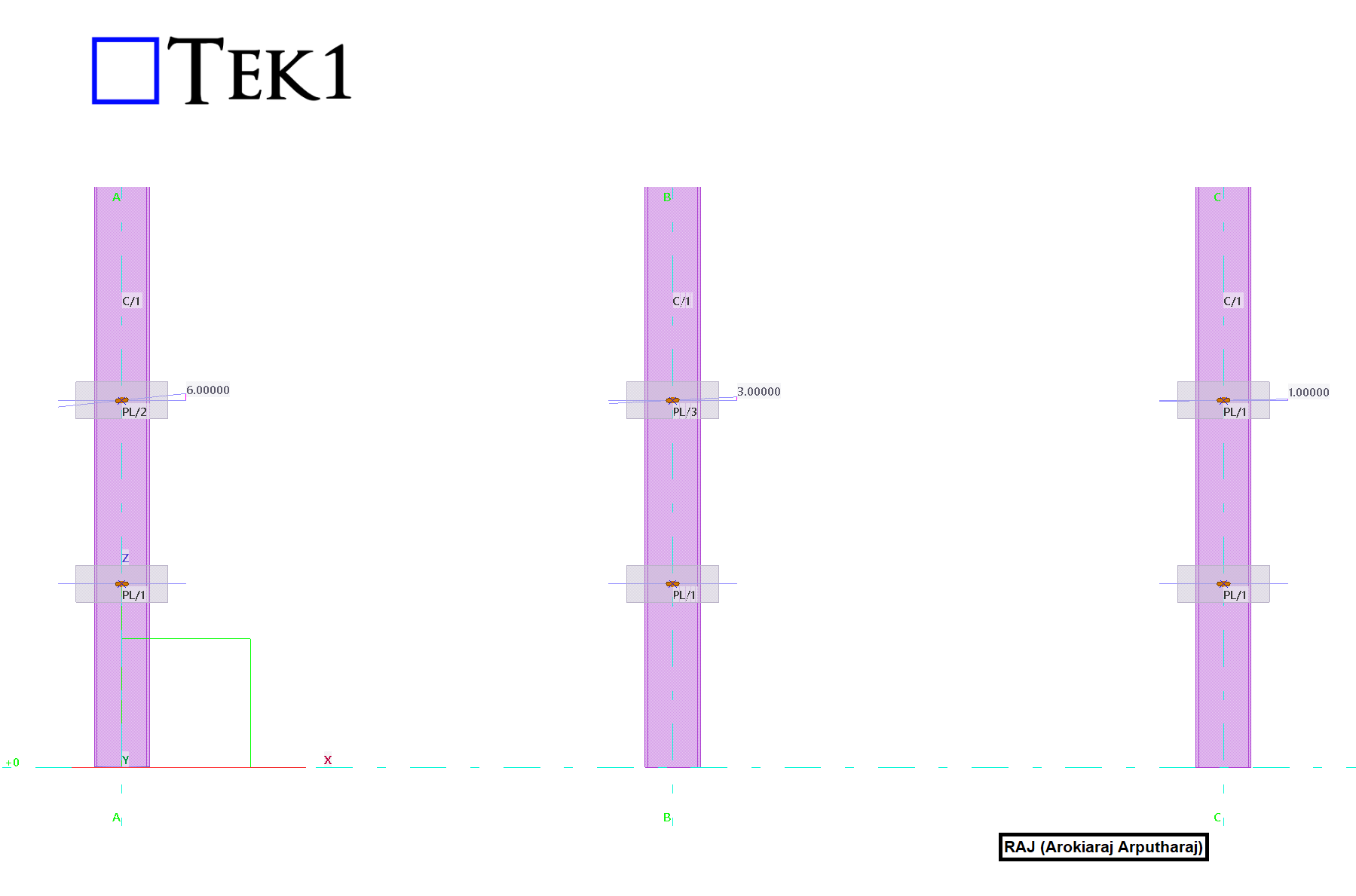
One plate contains a standard horizontal slotted hole.
The other plate has the same slot rotated by only 1°.
Although the slot orientations differ, Tekla evaluates both plates using its 1 mm geometry tolerance.
The 1° rotation creates a geometric difference within this tolerance.
Therefore, Tekla considers both plates identical.
As a result, Tekla automatically assigns the same part mark.
The Tekla Part Mark Issue with 1° Rotated Slotted Holes occurs because Tekla compares geometry using its default tolerance.
This behavior can create confusion during detailing and fabrication.
Detailers may expect different part marks because the slot directions are different.
Fabricators may struggle to identify the correct plate for each connection.
The issue can also affect CNC data generation.
Quality inspections may become more difficult.
Site assembly can also be affected when slot orientation is important.
Solution to Resolve the Part Mark issue Between Plates with Horizontal Slots and 1° Rotated Slotted Holes
Understanding the Tekla Part Mark Issue with 1° Rotated Slotted Holes helps detailers avoid unnecessary part variations.
A simple solution is to standardize the slot geometry.
Avoid creating separate plates with slightly rotated slots.
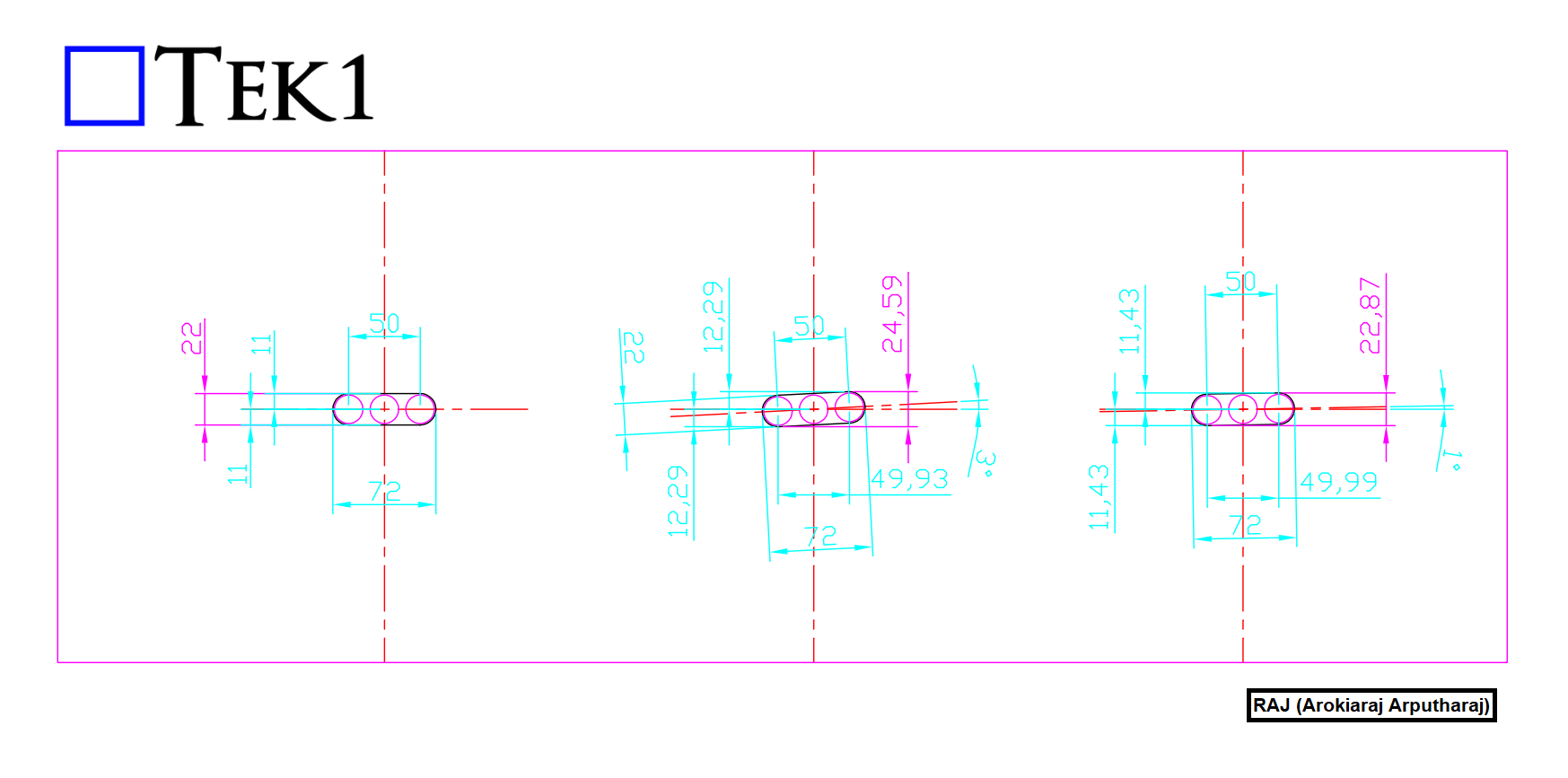
Instead, use a larger diameter horizontal slot for all similar plates.
The larger diameter slot accommodates the required installation tolerance for the 1° Rotated Slotted Holes.
Every similar plate then shares the same geometry.
All plates also receive the same part mark by design.
This approach removes unnecessary part variations.
It also maintains the required functionality and installation fit.
By following this method, you can permanently resolve the Tekla Part Mark Issue with 1° Rotated Slotted Holes.
Standardizing slotted holes provides several additional benefits.
It reduces the number of unique parts in the model.
It simplifies detailing and drawing production.
Fabrication becomes easier and more consistent.
CNC programming also becomes simpler.
The risk of manufacturing errors is reduced.
Assembly errors are less likely to occur.
Inventory management also becomes easier.
Fewer unique plate types need to be tracked.
This method is considered a best practice whenever extra slot tolerance is acceptable.
Always verify that the larger diameter slot meets project requirements.
Confirm compliance with engineering specifications before implementation.
Also ensure the connection design remains unchanged.
Using standardized slots creates cleaner Tekla models.
It improves fabrication efficiency
and reduces unnecessary detailing work.
also eliminates part mark conflicts caused by minor slot rotations.
By following this method, you can permanently resolve the Tekla Part Mark Issue with 1° Rotated Slotted Holes.
Key Benefits
- Eliminates duplicate part mark issues.
- Standardizes plate geometry and fabrication.
- Reduces the number of unique plate types.
- Simplifies detailing and CNC programming.
- Improves manufacturing efficiency.
- Prevents confusion during production and assembly.
- Helps maintain a cleaner and more consistent Tekla model.
We hope this guide helps you solve the Tekla Part Mark Issue with 1° Rotated Slotted Holes in your future Tekla projects.