Category: Autocad .Net API

This documents the work I’ve done on the Autocad API.

I will be posting code and helpful methods which you might find of use.

Thank you!

  • In Process vs Out of Process

    There seems to be a lot of confusion with folks about the difference between using the AutoCAD .net API vs the COM Interop API. They both hope to do the same things, but via different ways. Given a choice, I’d always recommend using the .net API because it is much more powerful.

    In process – .net API

    This means that the user has to first open AutoCAD. i.e. double click on the AutoCAD icon and start up AutoCAD. once AutoCAD is open and a drawing is opened, then the user has to type in a command: “NETLOAD” and has to select the a file – the result of all your programming/coding efforts. once that file is selected the user then has to run the command “AddLine”. the command will run as you have coded it. in order to do it this way you will need the .AutoCAD net API

    Out of Process – COM InterOp

    In this case, you don’t necessarily have to manually open AutoCAD up. you create your own program, and you open it (much like you would open MS word etc) and your “AddLine” command would run without you, as a user, manually opening AutoCAD and netloading etc.. if you’re going down this path you need to use the COM interop API.

    Using Both

    If you really want to use the .net API, but did not want to manually netload, then you can use a combination of both of the above:

    From the documentation:

    If you need to create a stand-alone application to drive AutoCAD, it is best to create an application that uses the CreateObject and GetObject methods to create a new instance of an AutoCAD application or return one of the instances that is currently running. Once a reference to an AcadApplication is returned, you can then load your in-process .NET application into AutoCAD by using the SendCommand method that is a member of the ActiveDocumentproperty of the AcadApplication.

    As an alternative to executing your .NET application in-process, could use COM interop for your application.

    Hope this clear things up for you.

  • How to insert Reference Models into Tekla

    Wouldn’t it be handy if we could pro grammatically insert reference models into Tekla? Well you can now do so quite easily. And if you want to see a video demonstration, here it is:

    Here is the code which does the hard work. (You will of course add the appropriate references and directives):

  • Stair Outline Routine (AutoCAD .net + Code attached)

    An example of the type of stairs we draw. We do a lot of stairs. Both AS 1428 and AS 1657 compliant stairs.
    An example of the type of stairs we draw. We do a lot of stairs. Both AS 1428 and AS 1657 compliant stairs.


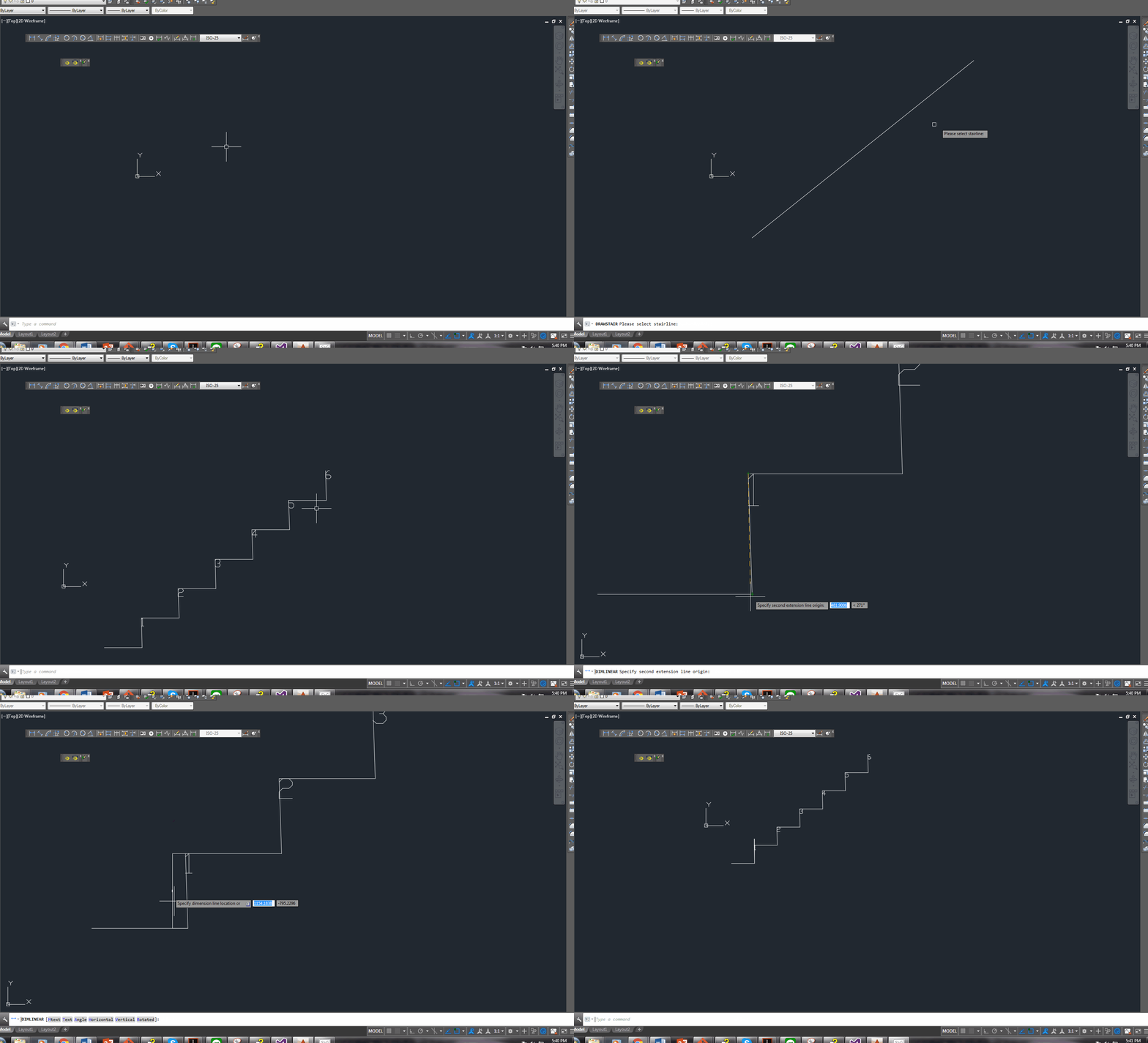
    We continue delving into our discussion of stairs. The boss hates it when I do things like this – releasing code to the public. But it’s too good not to share. Below is a routine you might find useful. We use it to model stairs – it’s super fast, and efficient. It allows us to try different things out and to discard what doesn’t work with ease. I’ve gone to the effort of drawing up an entire flight of stairs and then realised that I’m missing a tread. Then I’d have to redo the whole thing from the beginning. Once you have this outline done, the a good chunk of the work is finished.

    One of our many, many versatile routines:

    Here is a gif of the project:

    A Stair AutoCAD Plugin
    A plugin I wrote for AutoCAD. Written using c#.

    And here is the code for the benefit of study.

    I suppose I should refactor it, but I don’t think I’ll be changing it any time soon. So why worry?

  • Why do we set copy local to false?

    When you first get into .net API programming – for AutoCAD plugins, you learn this cardinal rule: make sure the three AutoCAD dlls you refer to have copy local set to false.


    Why exactly is this the case? I couldn’t find a better answer than the one offered by Fenton Webb. Here it is in full:


    Take a second to look at the AcMgd.dll and AcDbMgd.dll in this folder…. Do you notice that they are much smaller than the ones in the AutoCAD installation folder? There is a big reason for this which is that since the 2010 release of the ObjectARX SDK, we have “liposuctioned” the managed reference DLL’s. I say “liposuctioned” because we literally sucked out the body of the code from each function in the assembly DLL. What we did to create these DLL’s was to actually ILDASM (MSIL disassemble) the original DLL’s, strip all the body code from them and then reassembled them using ILASM (MSIL assembler). OK, now why on earth would we do that, right? Let me explain: the WPF UI designer (and indeed the WinForms designer) in Visual Studio is pretty cool in that it does a great job of showing the design of the UI on screen obviously. The problem is that the designer does like a half-hearted parse of the code behind that controls the UI in order to work out things like how it’s displayed for instance, which when we reference the external AutoCAD managed DLL’s can cause unresolved dependency errors and thus stop the VS Designer from working properly. These dependency errors are caused by the fact that the ac*mgd.dll’s depend on acad.exe which of course the VS Designer finds impossible to load in order to resolve the dependencies. By using the “liposuctioned” assemblies in your project, all of the object definitions are in place to resolve designer parsing issues. You’ll be glad to hear that it still compiles, and loads too! Just as long as you keep the Reference property “Copy Local” set to false for each DLL.

    (Taken from Fenton’s WPF AutoDesk University course notes).

  • Block Definitions and Block References Explained

    What is a block? What is a block reference? And what is the difference?

    Let’s use an analogy to help illustrate the concept.

    *Birth certificates are like your block table record, photocopies of your certificate are like block references.**

    (A) Block Definitions

    Imagine you have a really important document like your GREEN card/birth certificate etc. you have to keep this document locked away in your solicitor’s office. This green card is exactly like a block table record. You only have one of this document. But let’s just say you want to have many copies of your green card.

    (B) Block References

    Are you going to recreate a green card (and have many originals) so you can give one to the IRS, another to the department of immigration, another to the department of homeland security etc etc? No! Of course not: you are not going to recreate it; you are simply going to make photocopies of it. It makes sense because photocopies are cheap and easy and don’t cost (much) memory.
    The photocopies of your green card are like block references. you can have many photocopies of your green card, and you can paste them anywhere you want: on the street, in your home etc. you can even delete them. you can delete or destroy all of them, but you will still have your original green card located safely somewhere in your house, or your lawyers office (i.e. the block table record). If you destroy the original green card then guess what – you will no longer be able to make copies of it (i.e. you won’t be able to make any block references if you don’t have a block table record which it points to.)

    Summary:

    So you have the original birth certificate (block definition), and you’ve made a photo copy of your birth certificate (block reference).

    Where is it all located?

    The block definition is located in a place called the “block table”. Just because it is in the block table, doesn’t mean it will appear in your drawing. If you want to put it in your drawing then you need to create a block reference (which points to the block definition) and then you need to put the *block reference* into your drawing.

    How to add lines etc to your drawing – what is the model space?

    Imagine you are drawing on a piece of paper. if you want to have a line drawn on that paper, you have to add that line to the “model space”. The paper space is basically like some special 3d-glasses you wear to view all your drawings. Think of it like a camera lens, allowing you to see the same thing in many different shades/perspectives/views.

    Geometry can be added to a block definition

    Think of the block definition as a basket – it’s a basket you can add many things to. You can add, for example, lines, circles, text, all sorts of shapes into this basket. And when you are ready to draw, you can place photocopies of what’s in the basket, all over your drawing, perfectly replicating it.

    Getting more technical

    The “model space” is itself a block table record. And so is the paper space. When you want to add something to a drawing you will have to create a block reference and “append it” to either the model space or a paper space (or other layouts – but let’s not get into that).


  • Tekla–AutoCAD: Interoperability Tool

    Tekla – AutoCAD Interoperability Tool

    Tekla licenses are pricey. About $30k + maintenance per license. That’s expensive. And if you had 10 licenses, or perhaps even 50 licenses, what if I told you that you needed: 30-50% less licenses than you currently hold? That’s a huge cost saving. If you only need 5 licenses, then you’ve saved $150k instantly, plus maintenance. You can now do that.

    AutoCAD licenses are significantly cheaper than Tekla.

    But if only the work you did in AutoCAD could be transferred into Tekla? That would save you some licenses.

    That’s just what I’ve done here in my latest project. You can check it out here:

    Tekla – Autocad Interop. from Tek1 on Vimeo.

    Thanks for visiting this page.

  • Bubble Deck and Panel Detailing Tooling – AutoDimension Metal Curves

    Hi folks

    Demo of the Auto-dimension metal curve tool

    Auto Dimensioning Metal Curves from Tek1 on Vimeo.


    This post is a demonstration of the powerful tooling Tek1 has at its disposal. This will save you, the client: time and incorrect dimensions.

    This tool dimensions complex metal curves in a fraction of a second.  You can’t make a mistake – that is impossible because the computer does the heavy lifting. And it can’t take more than 10 seconds (maximum). Imagine dimensioning everything by hand. That would take forever!

    It allows our engineers and draftspeople to focus on the more important things: reading and interpreting drawings, and making good design decisions.

    with kind regards


    Ben

  • How to obtain a small offset around a polyline? (AutoCAD .net API)

    smallOffset
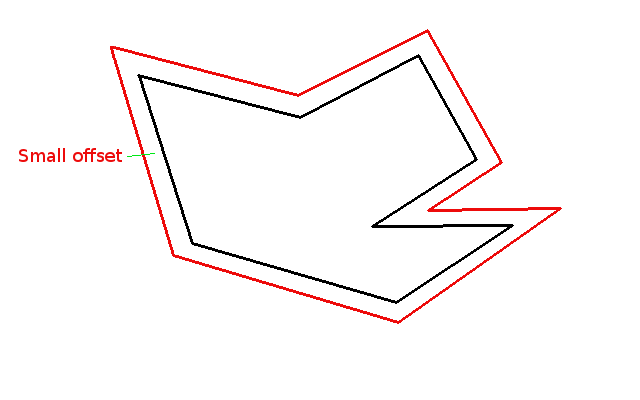
    Shows a small offset around a panel. This would need to be created.


    Offsets from a panel are used extensively in detailing.

    Here’s how to do it – simple, no? See below:


    DBObjectCollection _offsetPolylines = polylineInstance.GetOffsetCurves(25);
         // offsets the polyline by 25 mm
         // the object collection should really have only one item in it: a polyline offseting the original by 25mm.
  • How to return a selection of Objects to the user (AutoCAD .net)

    Here’s the code:

    And that should select any objects that you want to select. You’ll have to put it in an array though. A handy hint which can save you a bit of grief.