
Check out this link:
https://www.bendigoadvertiser.com.au/story/5711908/watch-the-new-railway-overpass-being-put-into-place/
Tek1 detailed this overpass and we were pleasantly surprised to see that it hit the news!
Check out this link:
https://www.bendigoadvertiser.com.au/story/5711908/watch-the-new-railway-overpass-being-put-into-place/
Tek1 detailed this overpass and we were pleasantly surprised to see that it hit the news!
It is important to check for fake dimensions before using it as reference model in Tekla
Please watch this video
Analyze load transfer before blindly applying connections.
Here is a markup from the engineer, which is right. The load from the UB350 beam is not transferred to SC7. Hence 4 bolts not required.
Tekla has got model sharing with latest releases. However, nothing like that exists in previous releases.
Now with API plugin from Tek1 you can share member placements on earlier versions. There is no Lic fees to for model sharing to be paid to Tekla.
You as the main modeller decide to farm out member placements to external modellers. You give them a log in and assign the project to the external contractor.
The external contractor models the elements. The modeler selects the elements and users of our API to share the model elements.
The main modeler then users our API to synchronize the model elements with the main model. The main modeler or the contract modeler can now adjust set outs and RLs on their model and the respective model can be synced with full control (accept or reject sync)
Update: This API is not available for sale. We thank you for your interest nonetheless.
Friends, there is no substitute to reading the documentation. The most up to date version of this is located in our Team Drive – but here is a local copy nonetheless.
AutoCAD-Tekla-Interop-Documentation
Following minimum checks should be carried out for interop
To draw cols (Autocad/nanocad)
Commands you can run using Tekla Interop (Autocad and Tekla)
Files you will require
Location of lisp file
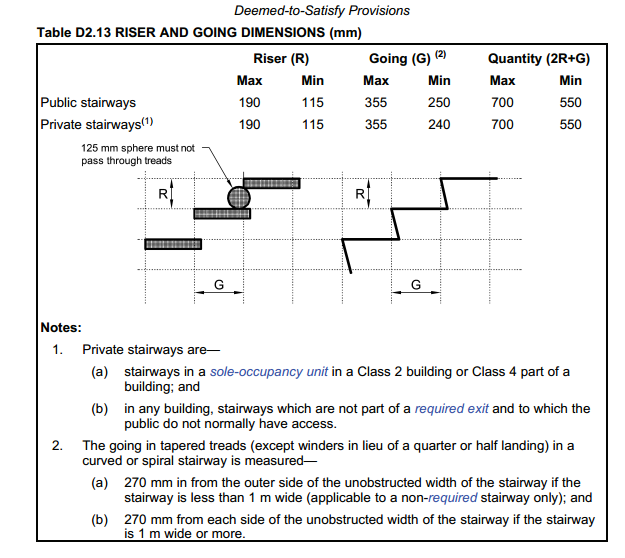
As per NCC 2016 D2.13 (Page 183) following requirements have to be met for public and private stairs
Public Stair ways, Riser – Max 190, Min 115 Going Max 355 Min 250 Quantity (2R+G) – Max 700 Min 550
Private Stairways Riser – Max 190, Min 115 Going Max 355 Min 240 Quantity (2R+G) – Max 700 Min 550
We have 5 Revit AEC Licenses and trained modelers in Revit Architecture and Revit Structure.
Our modelers are competent in the Australian building code.
We can help you complete your design work on time on budget by taking carrying out mundane work.
A very handy method. Often detailers will ask for something to be placed on a particular layer. But since they are using a 100 different drawing templates without any consistency nor standards, the onus is on you to impose that standard on them. So you’d have to check for a layer and add it if it doesn’t already exist. Anyways, that’s enough griping: here is the code: